Quick Cut is eCabinet Systems directly integrated with Control Nesting. To have Quick Cut you must have eCabinet Systems version 6.0 or newer installed on the Thermwood Controller. You also need to have THM version 7.4.0 or newer installed.
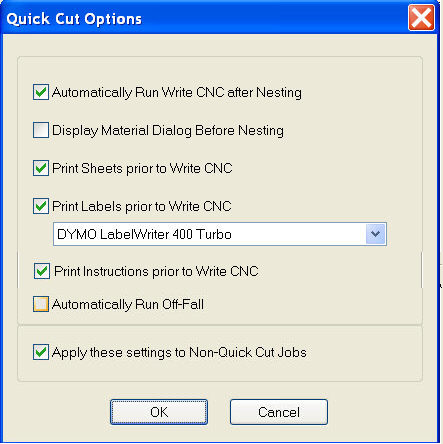
Quick Cut options provide control over how Control Nesting responds to Quick Cut. Quick Cut has the ability to load directly into Control Nesting and automatically Nest the parts. The following options can be enabled or disabled.
Automatically Run Write CNC after Nesting
- this will cause Control Nesting to instantly Write CNC after the Quick Cut job is Nested.
Display Material Dialog Before Nesting
- this will cause the Material dialog to be present after the job is loaded from Quick Cut. This allows for material sizes to be altered as well as merging materials with the same thickness
Print Sheets prior to Write CNC
- this will cause Control Nesting to automatically print the nested sheets as Write CNC is started
Print Labels prior to Write CNC
- this will cause Control Neting to automatically print the labels as Write CNC is started. You must designate the label printer in the provided drop down box.
Print Instructions prior to Write CNC
- this will cause Control Neting to automatically print the any instructional documents that have been installed for a particular cabinet or assembly
Automatically Run Off-Fall
- this feature will tell Control Nesting to perform a "Rolling Nest". Once this is enabled the Off-Fall that is generated on the last sheet of the previous Nest will automatically be loaded and used for Nesting. The Off-Fall must remain in it's previous location. DO NOT MOVE IT. If you do not wish to use the previous off-fall then it can be deleted in the Add Sheet area.
Apply these settings to Non-Quick Cut Jobs
- if you wish to use these options for jobs not loaded from Quick Cut then this can be accomplished by selecting this option.