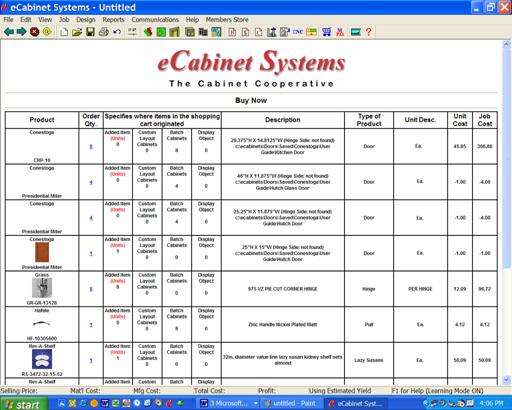
Now, let’s place the order. Click Order Now.
Here we see the same information reorganized into a Buy Now purchase order. Unlike the Shopping Cart which showed the quantity of each item you need for the Job, the Buy Now purchase order shows the number of items you will buy as the Order Qty. Let’s look at this form in more detail.
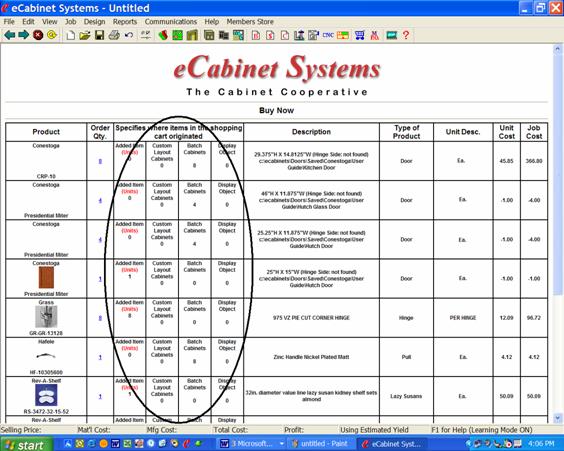
The center columns circled above provide detail from the Shopping Cart showing the quantity of each item required for various areas of the Job. The various quantities in these columns cannot be changed because they are simply a list of what is needed for the Job, and what you need is what you need.
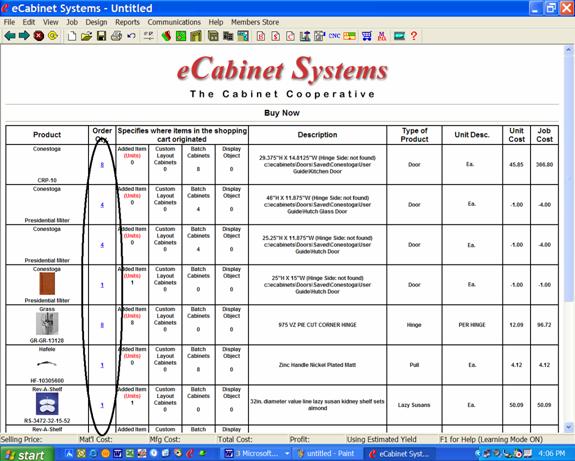
The Order Qty column circled above is the QUANTITY YOU WANT TO BUY.
This quantity is initially set equal to the total number of items you need for the Job.
 You can change the quantity to
either more or less than what you need. If you not want to buy any of a certain
item, set the quantity to zero.
You can change the quantity to
either more or less than what you need. If you not want to buy any of a certain
item, set the quantity to zero.
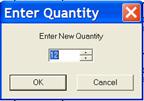
To change quantity, click on the number you want to change and the Enter Quantity dialog appears. Change the number and press OK.
Now, let’s focus on the bottom part of the order form.
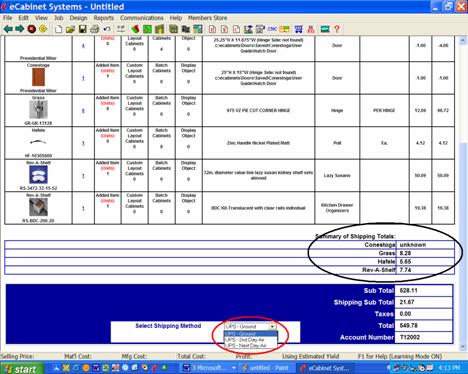
The black circled area is a summary of shipping costs for this order. Each vendor or source of product ships directly to you so there is normally a shipping cost associated with each. If no shipping cost is shown for a vendor it means that shipping is included in their price. This area details the exact shipping cost from each vendor. This is how much you will be charged for shipping.
The red circled area is used to specify shipping method. If you change shipping method, the system will calculate and display the new shipping costs.
Note that Conestoga shipping is stated as Unknown. In the case of doors and other large items, shipping is calculated on a per order basis depending on the overall order and shipping distance. In these cases you will be contacted directly with shipping cost and YOU MUST AGREE TO THE COST BEFORE YOUR ORDER IS PROCESSED. Until shipping cost has been communicated to you and you specifically agree, that portion of your order will not be processed. eCabinet Systems can provide a quotation for shipping prior to you placing the order should you want. Contact them directly for this type of quote.
The total purchases, total shipping, taxes and total order are then detailed at the bottom. Your account number is also shown.
If this is all correct and you wish to proceed, press the Submit Order button.
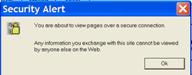
You will then see the Security Alert screen verifying that the coming transmissions will be fully encoded and secure.
Press OK.
 You are now presented with Billing and Shipping Information form.
You will only need to fill this out one time and the information is then stored
in your system and will be automatically entered when you access this page
again.
You are now presented with Billing and Shipping Information form.
You will only need to fill this out one time and the information is then stored
in your system and will be automatically entered when you access this page
again.
 Note that the fields with a red
asterisk must have an entry. The Billing
Information is actually the address at which you receive your credit card
bill. The name on the card and the Billing
Address must match to avoid problems in billing.
Note that the fields with a red
asterisk must have an entry. The Billing
Information is actually the address at which you receive your credit card
bill. The name on the card and the Billing
Address must match to avoid problems in billing.
You may notice that the Shipping Address information is all optional. If the shipping address is the same as the billing address you do not need to enter the information here. If, however, you want the product shipped to a different address than where you are billed you must complete the Shipping Information.
Note that we cannot ship to a PO Box.
Once your billing and shipping information is entered, it will be stored and automatically supplied the next time you access this form.
You may change the information any time you want, however, we attempt to monitor changes for security purposes, especially when the shipping address is significantly different than the billing address. If you make changes to your account information between Jobs we may need to call you to verify that you actually placed the order before actually processing it.
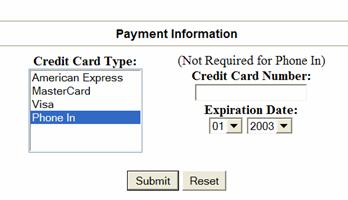 The final step is entering your
payment method. Payment for purchases through eCabinet Systems is via credit or
debit card. You can supply the information required here or, if you do not want
to transmit your credit card information, you can submit the order and then
call us with your credit card information. To do this simply select Phone In and submit the order.
The final step is entering your
payment method. Payment for purchases through eCabinet Systems is via credit or
debit card. You can supply the information required here or, if you do not want
to transmit your credit card information, you can submit the order and then
call us with your credit card information. To do this simply select Phone In and submit the order.
One important fact to note is that we do not store your credit card data in your local system. This is for security purposes. We do maintain it in our secure system for billing purposes so, once you place an order, you can simply select Use Card on File and we will use the same credit card you used on the last order.
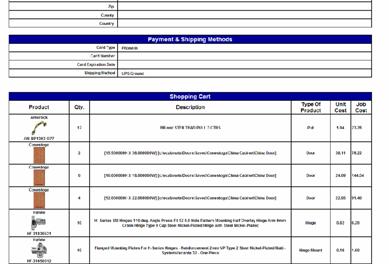
When you press Submit Order, you are presented with a final summary of the order, in detail as shown to the left.
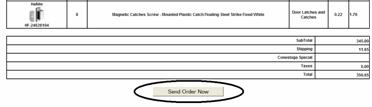
If the information is all correct, press the Send Order Now button at the bottom.
 Your order is then sent. It uses
the Internet for communications. The communications are directly from your
computer to the eCabinet Systems server.
Your order is then sent. It uses
the Internet for communications. The communications are directly from your
computer to the eCabinet Systems server.
If your default web browser is not open the system will ask for permission to open the web browser.
 At his point you will receive the
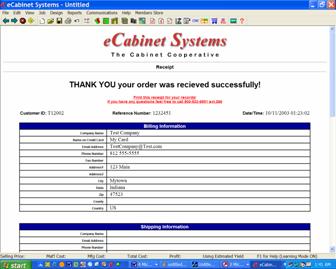
receipt shown to the left. If you receive this, we received your order.
At his point you will receive the
receipt shown to the left. If you receive this, we received your order.
This is actually a reflection of what we received. We get your data, store it and then generate this receipt from our files. If it is correct, you are assured that we have the correct information in our files. The receipt also contains a telephone number to call if you have any questions at all.
The receipt is a full document much like the Order Summary we just looked at. It is stored as a file in the receipt file directory and can be accessed at any time using the File – Receipt File menu selection at the top of the page.
Remember we are a cooperative in every sense of the word. We want to make you money as we try to make money. If you have any problems at all, please let us know. If you made a mistake on the order or have any other problem, just give us a call and we will try to fix it. Standard commodity items like hardware are easy to fix. Products specifically built for you like doors can be a bit more difficult, depending on how far the vendors are into the building process. In either case, give us a call with any problem at all and we will do our absolute best to try and help.
By the way, THANKS FOR THE ORDER !!!